The DrRacket Programming Environment
Summary: We examine the program development environment in which we will work for most of the semester.
Disclaimer: For this reading and the next, we have a bit of a “chicken and egg problem”. That is, it's difficult to introduce the environment in which you will write algorithms without first introducing the language in which you will write those algorithms. At the same time, you cannot start learning the language until you've learned a bit about the environment. In this reading, we will emphasize the environment, but teach you a bit about the language, too. In the paired reading, we'll teach you more about the language, but also a little bit about the environment. The lab should teach you a bit about both.
Introduction: Program-Development Environments
One of the main activities of many computer scientists is that of programming, expressing algorithms in a form understandable to the computer. (Even computer scientists who primarily study other issues often end up needing to build programs to help support arguments or to provide concrete evidence for theories.) Much of this semester, you will be writing programs as a way of learning about important concepts. Programming is also a skill that you can apply in a variety of contexts.
Most programmers develop their code in what is called an program-development environment or integrated development environment. Program-development environments let you write code, test bits of the code, format your code for easy readability, obtain documentation on built-in procedures, and so on and so forth.
In this class, we will use a program-development environment called DrRacket. DrRacket is an environment developed by a variety of folks interested in teaching programming to a wide variety of people. It therefore has many features that make it particularly amenable to novice programmers. For the past few years, we used a locally developed program-development environment. However, we used DrRacket (or its predecessor, DrScheme) before that, and we're looking forward to switching back. In this class, you will load some custom extensions to DrRacket that make it easier to script GIMP.
Starting DrRacket
In the laboratory that introduced the Linux environment, you should have configured your account to access DrRacket. If you did, you should see a blue and red circle with a lambda somewhere in your task bar. If you don't see such an icon, find a teacher or class mentor for help.
Once you have the icon, all you have to do is click on it to start DrRacket.
An Overview of the DrRacket User Interface
You will find that DrRacket has many similarities to most applications, including an that supports operations like cut and paste. You may, however, notice that DrRacket has a primary window that looks somewhat different than other programs.
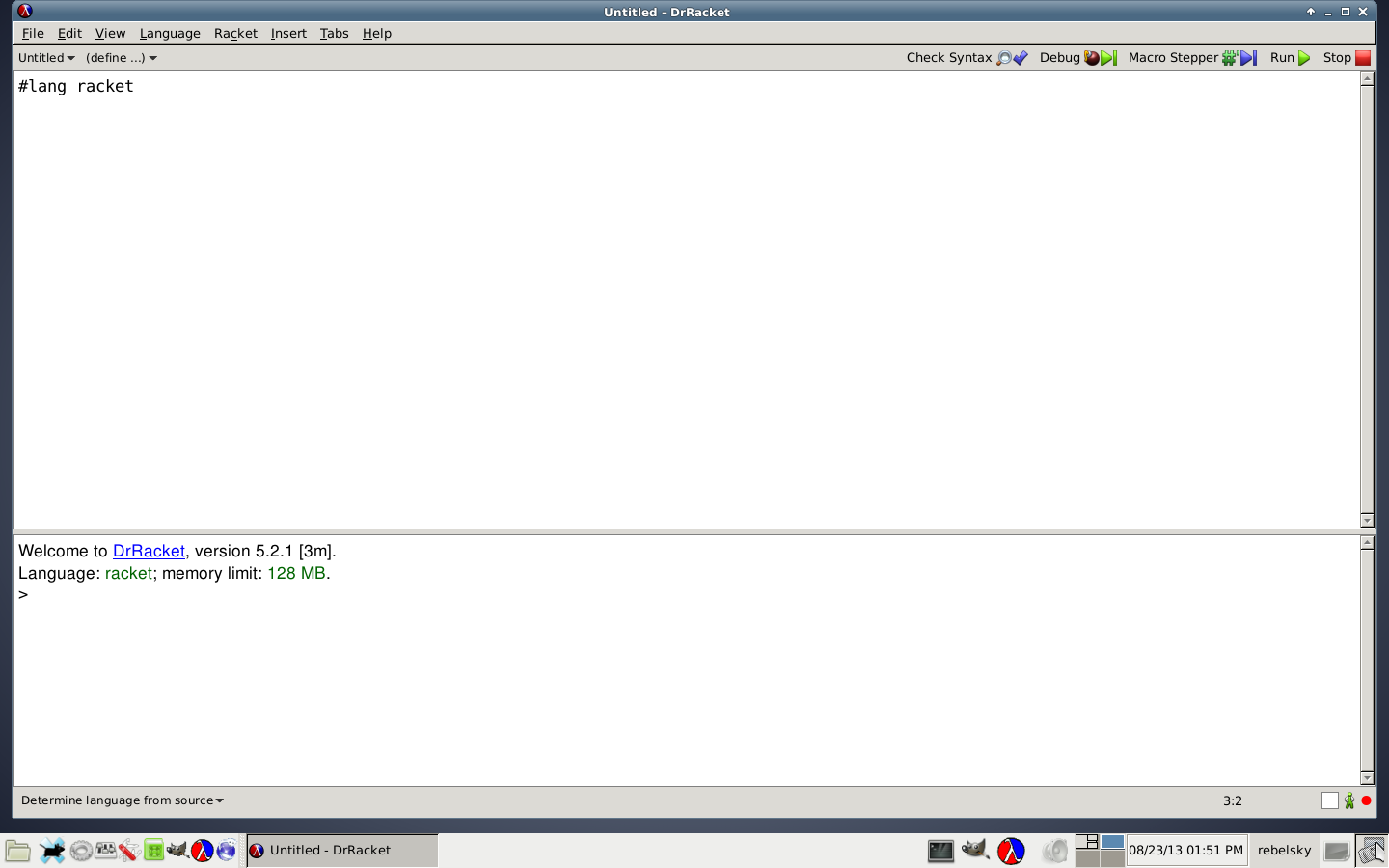 |
As you'll note, that window has two panes. The top pane is called the Definitions Pane and the bottom pane is called the Interactions Pane. (Sometimes they are called the “Definitions Window” and “Interactions Window”, but that's a misuse of the term “Window”.) As the names suggest, the top pane is used for writing definitions (more on those later) and the bottom pane is used for your primary interactions with DrRacket. (As you read through the materials for the course, you'll note that we format text you enter in the interactions pane and text you enter in the definitions pane slightly differently.)
After a few brief detours, we will start by exploring the interactions pane. For you initial use of DrRacket, you can treat the interactions pane as a fancy calculator. That is, you'll enter expressions and it will respond with the values of those expressions. For example, you can ask it to add 3 and 4, or to find the square root of 144.
Detour: Configuring DrRacket
It turns out that DrRacket can support a variety of programming languages (most of them variants of Scheme). We'd like to configure DrRacket so it's easy for us to tell it what language to use. In the menu, select . In the dialog box that appears, click on the radio button next to The Racket Language. Then click . Finally, click . That should be it - you're ready to go.
Detour: A Bit of Scheme
The expressions you write in the interactions pane have to use the syntax of the Scheme programming language. Scheme uses a consistent syntax that makes a lot of sense to the computer, but that takes a bit for humans to master. (Fortunately, Scheme's syntax is much simpler than that of almost any other computer language.)
Here are the two key points to remember when writing Scheme expressions:
- Non-trivial expressions are parenthesized: Every
expression and subexpression (except for simple things like numbers
or variables) must be surrounded by parentheses.
Hence, to ask for the square root of 144 we would write
(sqrt
    144)
. - Expressions are in prefix order: Operations
precede their operands. Hence, to add 3 and 4, we would write
(+ 3 4)rather than the more traditional3 + 4.
Why does Scheme use these two key ideas? Parentheses help
Scheme resolve potentially ambiguities. For example, you'll note that
different calculators compute different results for 3+4*5,
depending on whether or not they are designed to accommodate precedence.
In Scheme, since you must parenthesize every subexpression, you must
write either (+ 3 (* 4 5)) or (* (+ 3 4) 5).
Each expression indicates precisely what you want computed.
Prefix order, on the other hand, is intended to make life easier for
the programmer. In particular, in languages in which some operations
appear before their operands (such as sqrt) and others
appear between their operands (such as + or
modulo), programmers must remember or look up the order to use
for each operation. In Scheme, there's never a question, because
you always put the operation first.
The Interactions Pane
When DrRacket is ready for you to type an expression in the interactions pane, it prints a greater-than sign (also known as a right angle bracket). You type an expression you want evaluated and then hit the Enter. If you have not closed all the open parentheses, it will let you type more on the next line. Once you have completed an expression, it will evaluate it and present the result.
>(+ 3 4)7>(sqrt 144)12>(string-append "Hello" " " "Professor Rebelsky")"Hello Professor Rebelsky"
While the first two expressions are numeric, the last shows that Scheme can work with words, too. (As long as those words are enclosed in non-curly quotation marks.)
Note: The Enter key only evaluates an expression if the cursor is at the end of the expression. If you want to evaluate an expression and the cursor is in the middle, use Ctrl-Enter.
Editing in the Interactions Pane
At times, you will find that you made a small typo in a long expression. For example, in computing the average of the movie ratings 5, 4.5, 3.5, 4, 5, and 3, you might write
>(/ (+ 5 4.5 3.5 4 5 3) 5)5.0
The result suggests, of course, that there was an error in the expression. (After all, the average of ratings, some of which are less than 5, should not be 5.) A bit of analysis suggests that you really wanted to divide by 6, rather than 5. What can you do? You can retype the whole expression, but that takes a bit of time and gives you an opportunity to mistype something. You can cut and paste, and then edit the 5 (using the arrow keys and the backspace or delete keys).
Alternately, you can take advantage of DrRacket's Command History. DrRacket lets you scan through the previous expressions entered. To back up in the command history, press the Ctrl key and the up-arrow key. To move forward again, type Ctrl and the down-arrow key. (You can also use Esc followed by P to move to the previous command and Esc followed by N to move to the next command.)
The Definitions Pane
We've seen what the interactions pane is for. How should we use
the definitions pane? The simplest use is to assign names to values to
make it easier to write our expressions. For example, if we wanted to
work with ratings from six reviewers, we might name the rating from
the first reviewer times-rating, the rating from the
second reviewer tribune-rating, and so on and so forth.
That way, the expression to compute the average rating would be the clearer
> (/ (+ times-rating tribune-rating cbs-rating nbc-rating abc-rating fox-rating) 6)
In Scheme, we name values using the
define
#lang racket
(define times-rating 5)
(define tribune-rating 4.5)
(define cbs-rating 3.5)
(define nbc-rating 4)
(define abc-rating 5)
(define fox-rating 3)
The definitions in the definitions pane are evaluated when you click the button. Once you've done so, you can use the names in the interactions window.
Note: Every time you hit the button, it replaces the contents of the interactions pane, including any definitions you put in that pane. Be careful!
Saving and Restoring Definitions
If you spend a bit of time naming values, you may find it useful to save those definitions into a file that you can then restore later. As you might guess, you save definitions using a menu item from the . Since you can gather text in both the definitions pane and the interactions pane, DrRacket provides both and (as well as a host of variations thereof). Since the definitions are more likely to be of permanent use than the interactions pane, the default is to save definitions.
The custom is to save DrRacket files with a suffix of .rkt.
(Sometimes we'll use .scm or .ss.)
If you do not provide a suffix, or choose a bad suffix (like .jpg),
DrRacket will be happy to let you violate standards, but you may
find it harder to work with the file.
Once you have saved definitions, you can quit DrRacket, go off and do other work, and then restart DrRacket and reload the definitions. As you might expect, you can load old definitions by using or from the menu.
If you end up creating lots of definitions files and want to use them
simultaneously (but don't need to edit them), there's a command you can
type in the interactions window to get definitions from a file rather
than from the definitions pane, load
>(load "ratings.rkt")
Concluding Thoughts
You have now learned enough to begin to interact with DrRacket. In a subsequent lab, we will ground these abstract instructions in concrete exercises.